Replacing your keycaps is one of the easiest ways to change the appearance and feel of a mechanical keyboard.
A new PBT keycap set can add a different colorway, theme, and texture. However, keycaps are not guaranteed to fit simply because they look similar to the ones currently on your keyboard.
Mechanical keyboards can use different layouts, stems, spacebar sizes, and modifier keys. Without checking compatibility, you may discover that the spacebar does not fit, the right Shift is the wrong length, or the set is missing several keys needed for your layout.
Before ordering, check these five essential details.

1. Check Your Keyboard Layout
First, identify your keyboard layout.
Popular layouts include:
- 60%
- 65%
- 75%
- TKL / 80%
- 96%
- 1800 compact
- Full-size / 100%
The percentage describes how compact the keyboard is compared with a full-size model, but it does not identify every key size.
Two keyboards described as 75% can have different right-side arrangements. Two 65% keyboards may also use different right Shift keys.
Do not rely exclusively on the “65%” or “75%” name. Check the keyboard manual, official specifications, or a layout diagram, and compare it with the keycap set’s compatibility image.
What Should You Check for Each Layout?
| Keyboard Layout | Important Compatibility Details |
|---|---|
| 60% | Right Shift, bottom row, and spacebar |
| 65% | Short right Shift and navigation keys |
| 75% | Right Shift, 1U modifiers, and navigation keys |
| TKL | Usually straightforward, but check the bottom row |
| 96% / 1800 | Compact number pad, numpad 0, and right-side keys |
| Full-size | Complete number-pad coverage |
Sets with more keys generally support more layouts, but every required size should still be checked.
One Keycap Set, More Layout Options
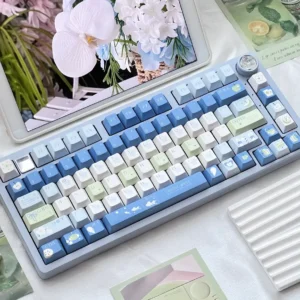
Selected GATHRA+ designer sets contain 138 or 139 keycaps and support common 60%, 65%, 75%, 80%, 96%, and 100% layouts.
Additional keys give you more flexibility now and if you change keyboards later.
2. Check the Switch and Stem Compatibility
The keycap connects to the switch through the stem, so their shapes must match.
One of the most common designs is the MX-style cross stem. Its top looks like a “+,” and it is used by Cherry MX and many compatible switches.
If your keyboard uses MX-style cross stems, you will usually have a wide selection of compatible keycap sets.
However, keep the following exceptions in mind:
- Low-profile switches often require dedicated low-profile keycaps.
- Optical switch designs can differ between manufacturers.
- Some electrocapacitive keyboards require special keycaps or adapters.
- Scissor-switch, membrane, and laptop keyboards are normally incompatible.
- Magnetic switches should be checked according to their actual top-stem design.
Do not assume compatibility just because a product is described as “mechanical keyboard keycaps.” Remove one keycap, inspect the switch top, and consult the keyboard specifications.
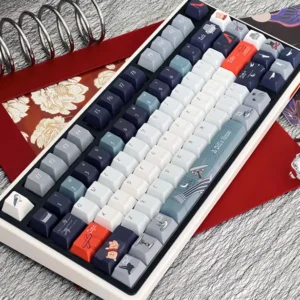
The GATHRA+ Honkai Series and Black Ronin sets use MX-style cross-stem mounts for keyboards with compatible switches.
3. Confirm the Spacebar Size
The spacebar is one of the most common sources of keycap compatibility problems.
Keycap sizes are measured in units, written as “U.” A standard letter key is 1U, while a 6.25U spacebar is approximately 6.25 letter keys wide.
Common spacebar sizes include:
- 6.25U: Common on standard mechanical keyboards
- 7U: Frequently found on some custom layouts
- 6U: Used by certain non-standard keyboards
- 2.25U + 2.75U: A common split-spacebar combination
- Other sizes used by ergonomic or specialized layouts
Length is not the only consideration. The stem and stabilizer mounting positions underneath the spacebar must also align.
How Can You Identify Your Spacebar Size?
Use one or more of these methods:
- Check the keyboard’s official specifications.
- Review its PCB or plate layout.
- Compare the spacebar with adjacent 1U keys.
- Remove it and inspect the stem and stabilizer positions.
- Compare your keyboard with the keycap compatibility diagram.
When uncertain, choose a set that includes several spacebar options.
More Spacebar Options for More Keyboards
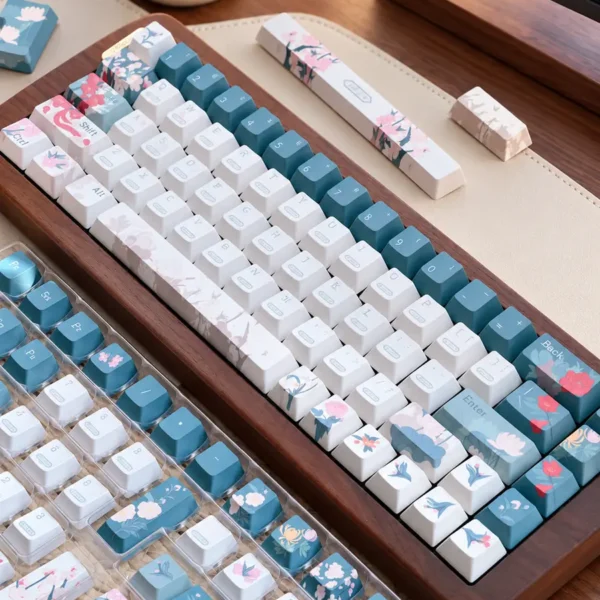
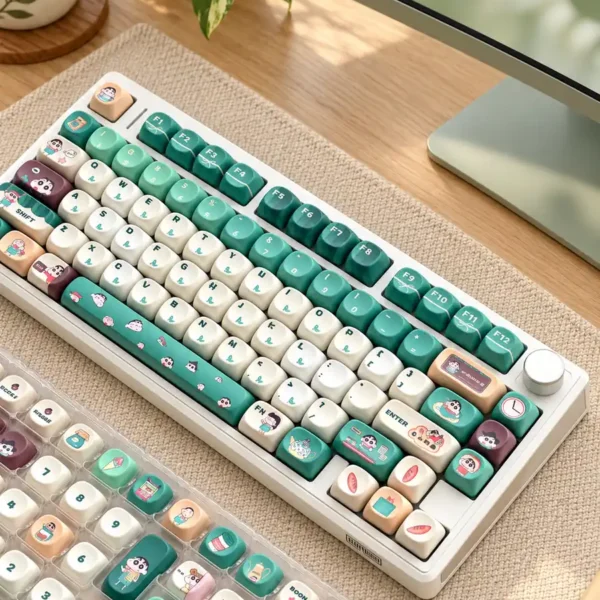
The Honkai Series Keycaps include 139 PBT keycaps with support for 2.25U, 2.75U, 6.25U, and 7U spacebar configurations.
The set combines five-sided dye sublimation with approximately 1.6 mm-thick PBT for broad layout coverage, wear resistance, and a complete themed design.
4. Check Modifier and Bottom-Row Sizes
Even if the letter keys and spacebar fit, the entire set may not be compatible.
Compact and custom keyboards often use non-standard Shift, Ctrl, Alt, Fn, and navigation keys. Common problem areas include:
- Right and left Shift
- Enter
- Backspace
- Ctrl, Alt, Fn, and system keys
- Numpad 0 and plus keys
- Home, Delete, Page Up, and Page Down
- Split spacebars
Why Is the Right Shift Important?
A standard ANSI keyboard normally has a relatively long right Shift. Many 65% and 75% keyboards use a shorter version to create room for dedicated arrow keys.
If a set only contains the standard right Shift, it may not fully support your compact keyboard.
Check the Bottom Row
The bottom row contains more than the spacebar. Ctrl, Alt, system, and Fn keys may also use different widths.
Compare a complete image of your keyboard layout with an image showing every key included in the set. Product lifestyle images alone are not enough to confirm compatibility.
5. Confirm the Profile, Legend Position, and Lighting
Physical width is only part of compatibility. The keycaps should also match your typing preferences and lighting requirements.
Keycap Profile
Common profiles include:
- Cherry
- OEM
- XDA
- SA
- MDA
- DSA
Cherry, OEM, and SA normally use sculpted rows with different heights and angles. Moving a keycap to a different row may make it feel or look incorrect.
Uniform profiles such as XDA and DSA can offer more flexibility when rearranging keys, but they provide a different typing experience.
Check the profile and make sure the set includes each legend in the correct row.
Legend Position
Keycaps can use top-facing, front-facing, or design-focused legends. Legend position does not normally determine whether a keycap can be installed, but it affects appearance and lighting.
Do You Need Shine-Through Legends?
If you want RGB light to pass directly through the characters, choose keycaps specifically described as “shine-through.”
Dye-sublimated PBT sets commonly emphasize artwork, color, and durability rather than illuminated legends. RGB light may remain visible between the keys, but it will not pass through opaque characters.
Decide whether illuminated legends or a complete visual theme matters more to your setup.
Keycap Compatibility Checklist
Before placing your order, confirm:
- Is my keyboard 60%, 65%, 75%, TKL, 96%, or full-size?
- Does it use an MX-style cross stem?
- Is the spacebar 6.25U, 7U, or split?
- What sizes are the right Shift and bottom-row modifiers?
- Does the set include a complete number pad or navigation area?
- Which keycap profile do I prefer?
- Do I need shine-through legends?
- Are all special keys required by my layout included?
- Is it a full keycap set or a small add-on kit?
- Does the listing clearly state that the keyboard itself is not included?
Completing this checklist can significantly reduce the risk of ordering the wrong set.
How Do You Measure Keycap Sizes?
If official layout information is unavailable, use a standard 1U letter key as your reference.
| Size | Common Use |
| 1U | Letters, numbers, and small modifiers |
| 1.25U | Common Ctrl, Alt, and system keys |
| 1.5U | Some Tab, backslash, and modifier keys |
| 1.75U | Caps Lock and some 65%/75% right Shift keys |
| 2U | Backspace and some numpad 0 keys |
| 2.25U | Left Shift, ANSI Enter, or split spacebar |
| 2.75U | Standard right Shift or split spacebar |
| 6.25U | Common standard spacebar |
| 7U | Spacebar on some custom keyboards |
Check both the length and the mounting positions underneath. Two spacebars with a similar exterior length may not have identical stabilizer mounts.
Why Choose a Set With More Keys?
A small base kit may support only one standard layout. A larger set with additional keys can offer:
- Several Shift sizes
- Alternative bottom-row arrangements
- Standard and compact layout support
- Number-pad coverage
- Windows or macOS modifiers
- Multiple spacebar sizes
- Additional decorative keys
This improves compatibility with your current keyboard and provides more flexibility if you switch layouts later.
From 60% to Full-Size
The Black Ronin Keycaps include 138 keys and support MX-style cross stems along with popular 60%, 65%, 75%, 80%, 96%, and 100% layouts.
PBT material, five-sided dye sublimation, a matte texture, and an approximately 1.6 mm thickness bring together compatibility, feel, and durability.
How Should You Install New Keycaps?
Before removing anything, take a clear photo of your keyboard so you can refer to the original positions.
Then:
- Turn off and disconnect the keyboard.
- Use a keycap puller to remove the original keycaps vertically.
- Clean dust from the exposed keyboard surface.
- Install large stabilized keys such as the spacebar, Shift, and Enter first.
- Check that the stabilizers move correctly.
- Install the letters and modifiers according to the layout diagram.
- Press each keycap gently until it is seated.
- Reconnect the keyboard and test every key.
Do not force or twist stabilized keys, as this may damage the keycap mount, switch, or stabilizer.
Final Thoughts: Confirm Compatibility Before Choosing a Design
Appearance may be the first reason a keycap set catches your attention, but compatibility determines whether it can complete your keyboard upgrade.
Before ordering, always verify:
- Keyboard layout
- Switch and stem
- Spacebar size
- Modifier and bottom-row sizes
- Profile and lighting requirements
If you use a compact, custom, or non-standard keyboard, prioritize sets with a high key count, clearly listed layout compatibility, and multiple spacebar options.
Find Keycaps That Fit Your Keyboard and Your Style
GATHRA+ designer PBT keycaps provide additional keys, broad layout support, and several spacebar options. Five-sided dye sublimation brings original themes across the keycap surface, while wear-resistant PBT is made for everyday use.